How to Extract Pages from a PDF — Keep Only What You Need
PDFs rarely come in exactly the right size. You get a 60-page contract and need to send two pages to a client. You have a research paper and want to save just the results section. You received a report and only care about the appendix.
Extracting specific pages is one of the most common PDF tasks — and one of the easiest to do, once you have the right tool.
Why Extract Pages from a PDF?
How to Extract Pages — Step by Step
Step 1: Open the Tool
Go to the Extract Pages tool. No installation, no sign-up.
Step 2: Upload Your PDF
Click the upload area or drag your PDF in. The tool accepts any standard PDF.
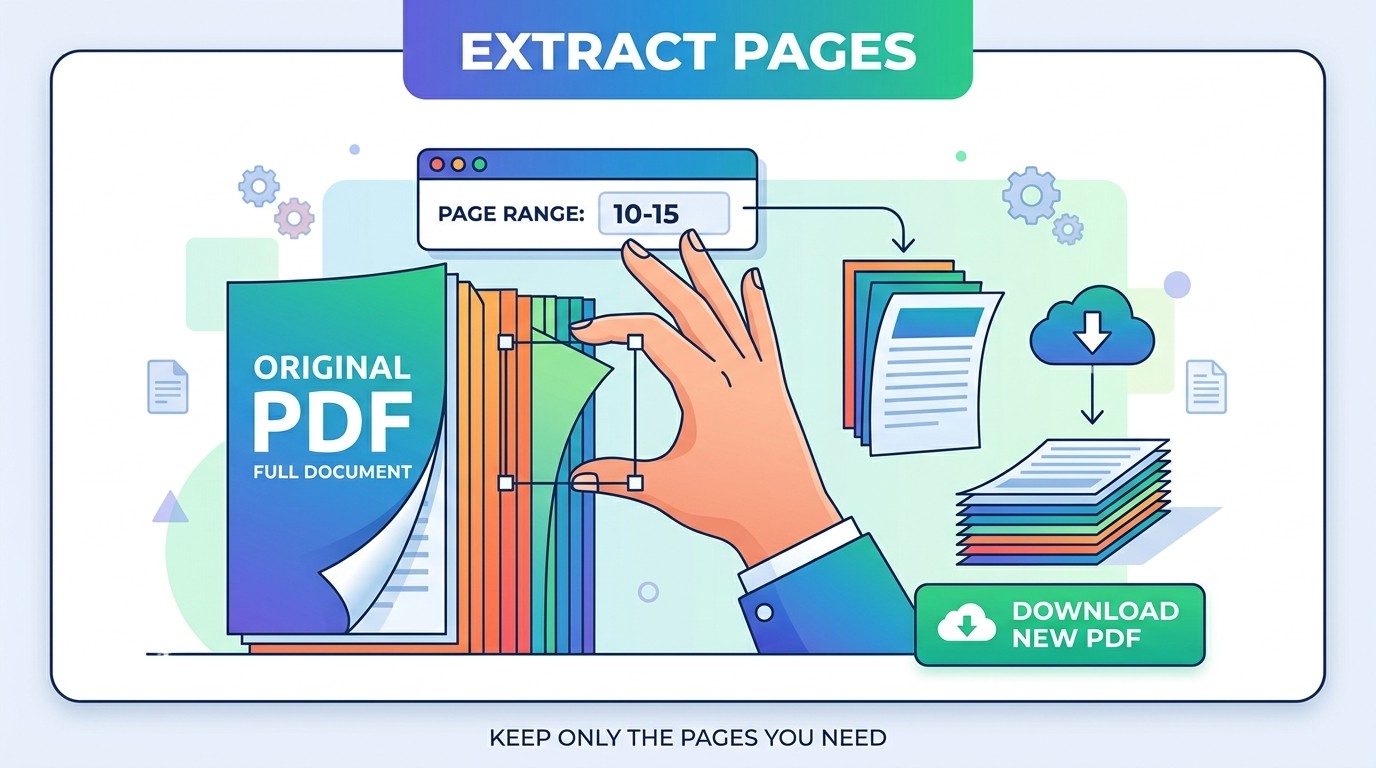
Step 3: Enter the Pages You Want
Type in the pages or ranges you want to keep. The format is flexible:
So if you want pages 1 to 3, then page 7, then pages 12 to 15, you'd enter: 1-3, 7, 12-15
Step 4: Extract and Download
Click the button. Your new PDF — containing only the pages you specified — downloads immediately.

Tips for Getting It Right
Check Your Page Numbers First
Page numbers printed in the document don't always match the actual PDF page numbers. A document might start numbering at a cover page or introduction. Open the PDF in a viewer and count from page 1 of the file itself, not from the printed numbers inside.
Use Ranges for Consecutive Pages
Instead of typing 2, 3, 4, 5, use 2-5. Fewer keystrokes, same result.
You Can Mix and Match
The tool lets you combine individual pages and ranges in any order. 1, 5-8, 12, 20-22 is perfectly valid.
The Original Is Unchanged
Extracting pages creates a new PDF. Your original file is not modified.
Common Use Cases
Legal and Contracts
Extract specific clauses, exhibits, or signature pages from long agreements to share with relevant parties.
Academic Research
Keep only the methodology or results section from a paper for your notes and citations.
Financial Documents
Pull a single month's statement from a year-end PDF, or extract a specific table or chart page.
Presentations
Use selected pages from a longer deck to build a focused, shorter version for a specific audience.
Books and Manuals
Extract a chapter or section from a large manual to share with someone who only needs that part.
What Happens to the Rest of the Document?
Only the pages you specify end up in the output file. Everything else — including any pages not in your range — is left out. The extracted pages keep their original formatting, fonts, images, and links.
Conclusion
Extracting pages is one of those small tasks that comes up constantly in any document-heavy workflow. Whether you need one page or twenty, the process is the same: upload, enter your range, download.
Try the Extract Pages tool — it takes about ten seconds.