How to Convert an Image to PDF (JPG, PNG, and More)
Whether you scanned a document, took a photo of a receipt, or exported a screenshot, there are plenty of moments when you need an image to become a proper PDF. The good news: it takes seconds, and you don't need to install anything.
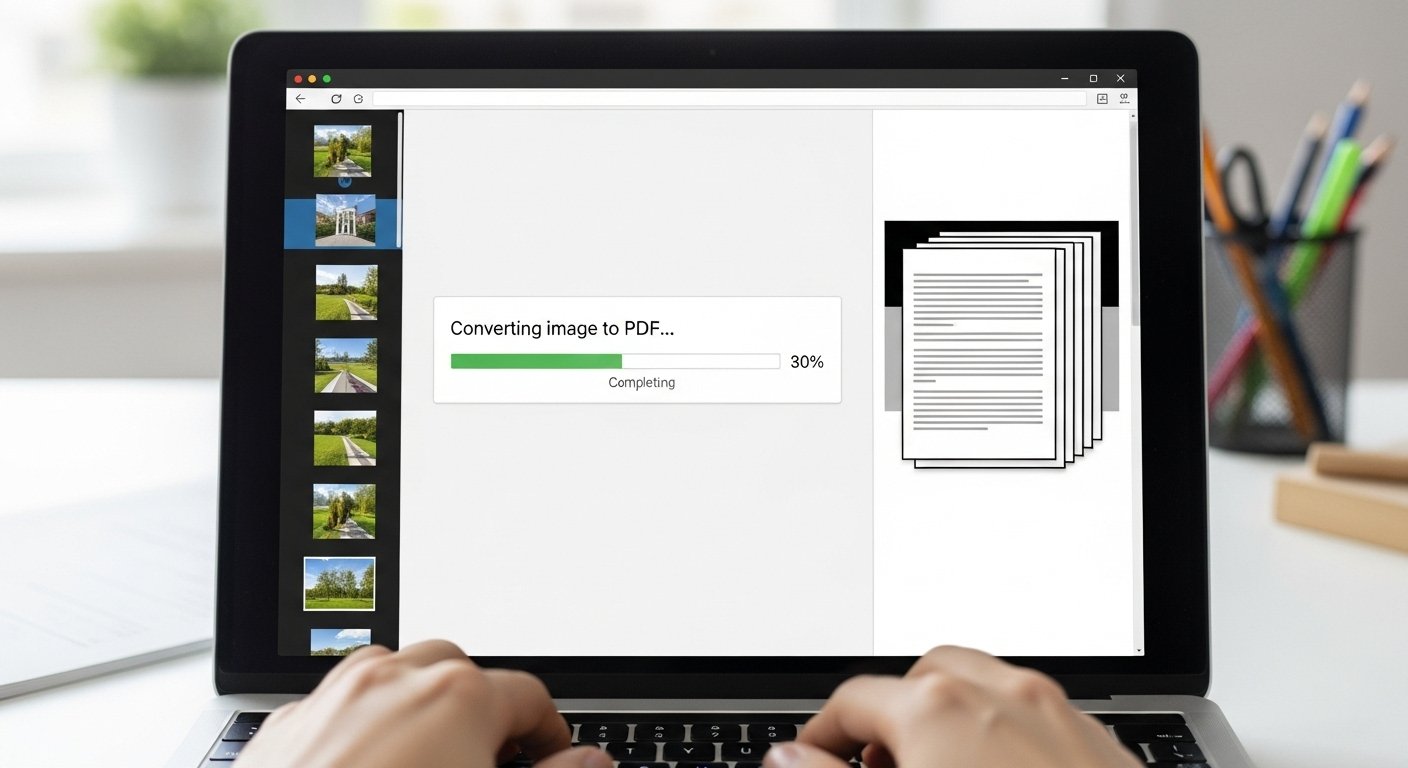
Why Convert an Image to PDF?
Images work great for viewing, but they're not always the right format for sharing or filing. Here's when converting to PDF makes sense:
What Image Formats Can Be Converted?
Our Image to PDF converter supports the most common formats:
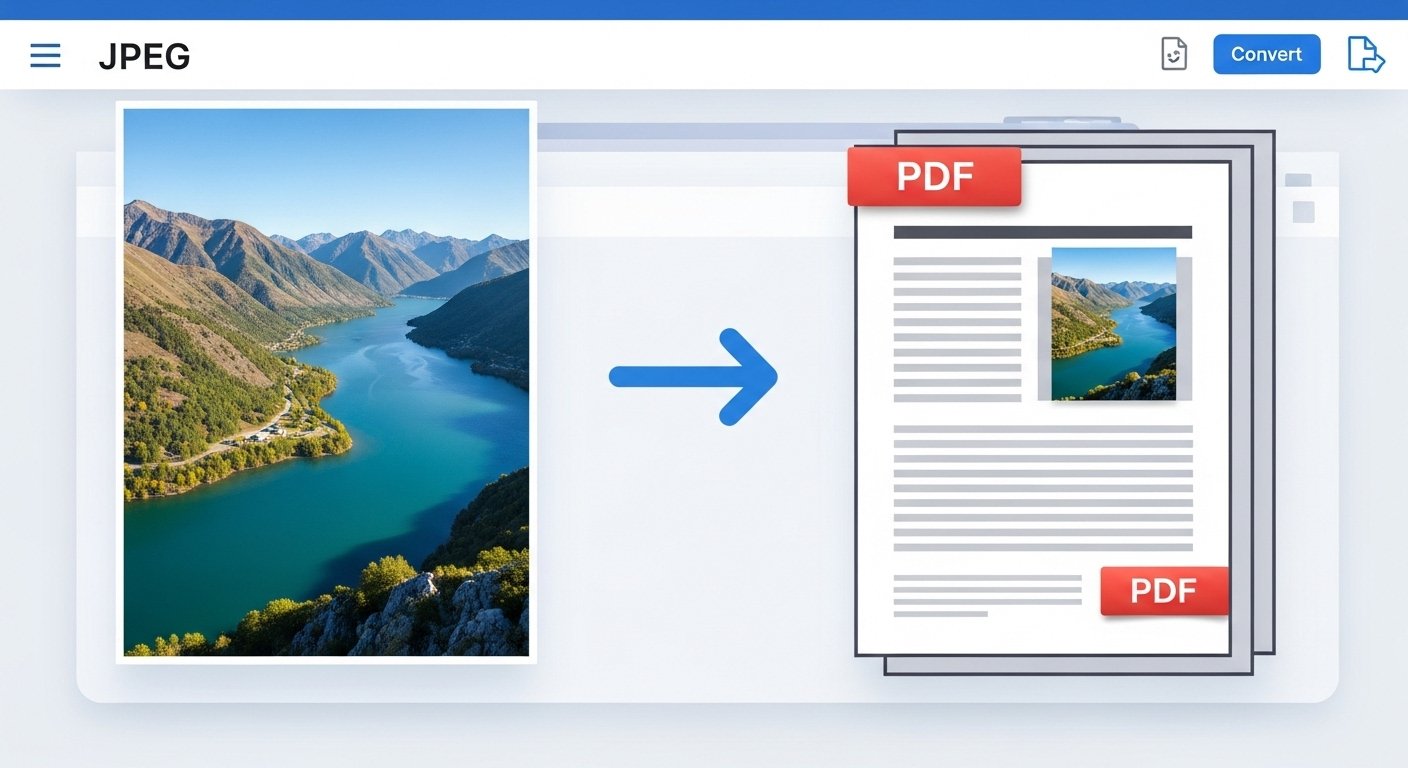
How to Convert an Image to PDF — Step by Step
Step 1: Open the Tool
Go to the Image to PDF converter. No account or sign-up required.
Step 2: Upload Your Image
Click the upload area or drag and drop your image file. You can upload multiple images at once if you want them combined into a single PDF.
Step 3: Convert
Hit the convert button. Processing is fast — most files are done in a couple of seconds.
Step 4: Download Your PDF
Your PDF downloads automatically. Open it, share it, or file it — it's ready to go.
Common Use Cases
Receipts and Invoices
Photo of a paper receipt? Convert it to PDF and attach it to an expense report or email it to your accountant.
Scanned Documents
Scanned pages often come out as images. Convert them to PDF for cleaner storage and easier sharing.
Screenshots
Captured a screenshot of a webpage, error message, or design mockup? A PDF is easier to send and print than a raw PNG.
ID and Passport Copies
Many forms and applications ask for ID copies as PDF. If you only have a photo, this is the fastest way to comply.
Phone Photos
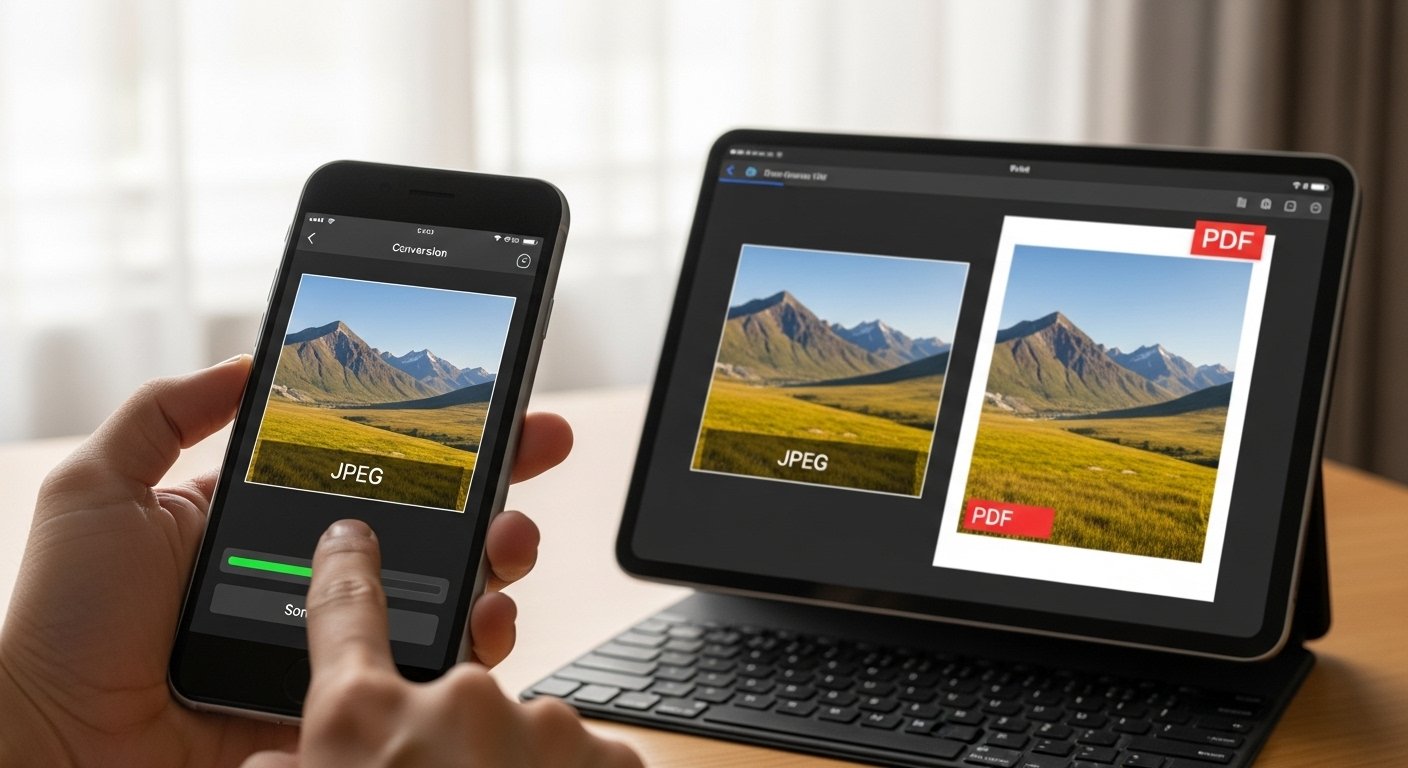
Took a photo of a whiteboard, a handwritten note, or a physical document? Convert it to PDF so it's easy to share and doesn't get lost in your camera roll.
Tips for Better Results
Use Good Lighting When Photographing Documents
If you're converting a photo of a physical document, good lighting makes a big difference. Avoid shadows and glare — the cleaner the image, the cleaner the PDF.
Use PNG for Screenshots
PNG preserves sharp text and edges better than JPG for screenshots and diagrams, which means your PDF will look crisper.
Check Orientation Before Uploading
If your image is sideways, rotate it before uploading. Most phones and image editors can do this quickly.
Conclusion
Converting an image to PDF is one of those small tasks that comes up constantly and should never be a hassle. No software, no account, no waiting — just upload and download.
Try our Image to PDF converter now and have your PDF ready in seconds.